How to Auto-Change Status on a Specific Date in monday.com
You have a board with due dates. You want the status to automatically flip to "Overdue" or "In Review" the moment that date arrives — not sometime that morning, not the next day. The exact minute.
If you've tried monday.com's built-in "When date arrives" automation, you probably noticed it doesn't fire at a specific time. It runs in a daily batch window (usually early morning), which means your status change might happen hours before or after the actual deadline.
The problem with native date automations
Monday.com workflows offer When date arrives and When date arrives and only if recipes. They work, but with limitations:
- No time precision — they fire "on the day", not at the hour/minute stored in your DateTime column.
- Relative offsets only — you can say "1 day before" or "on the date", but not "at 14:30 on June 15th".
- No condition check at fire time — the automation fires regardless of the item's current state.
For many workflows this is fine. But if you're managing client handoffs, SLA deadlines, shift changes, or time-sensitive notifications, "sometime today" isn't precise enough.
The solution: Precise Triggers
Precise Triggers is a monday.com app that reads the exact DateTime value from any date column and fires your action within 60 seconds of that moment. No external tools, no Zapier, no per-task pricing.
Step 1: Install the app
Click the button below to add Precise Triggers to your monday.com account. It takes about 10 seconds — authorize and you're in.
Step 2: Add the Board View
On any board with a Date or DateTime column, click the + (Add View) button in the top bar and select Precise Triggers. This opens the trigger configuration panel.
Step 3: Create your trigger
- Select the date column — pick the column that holds your target date/time.
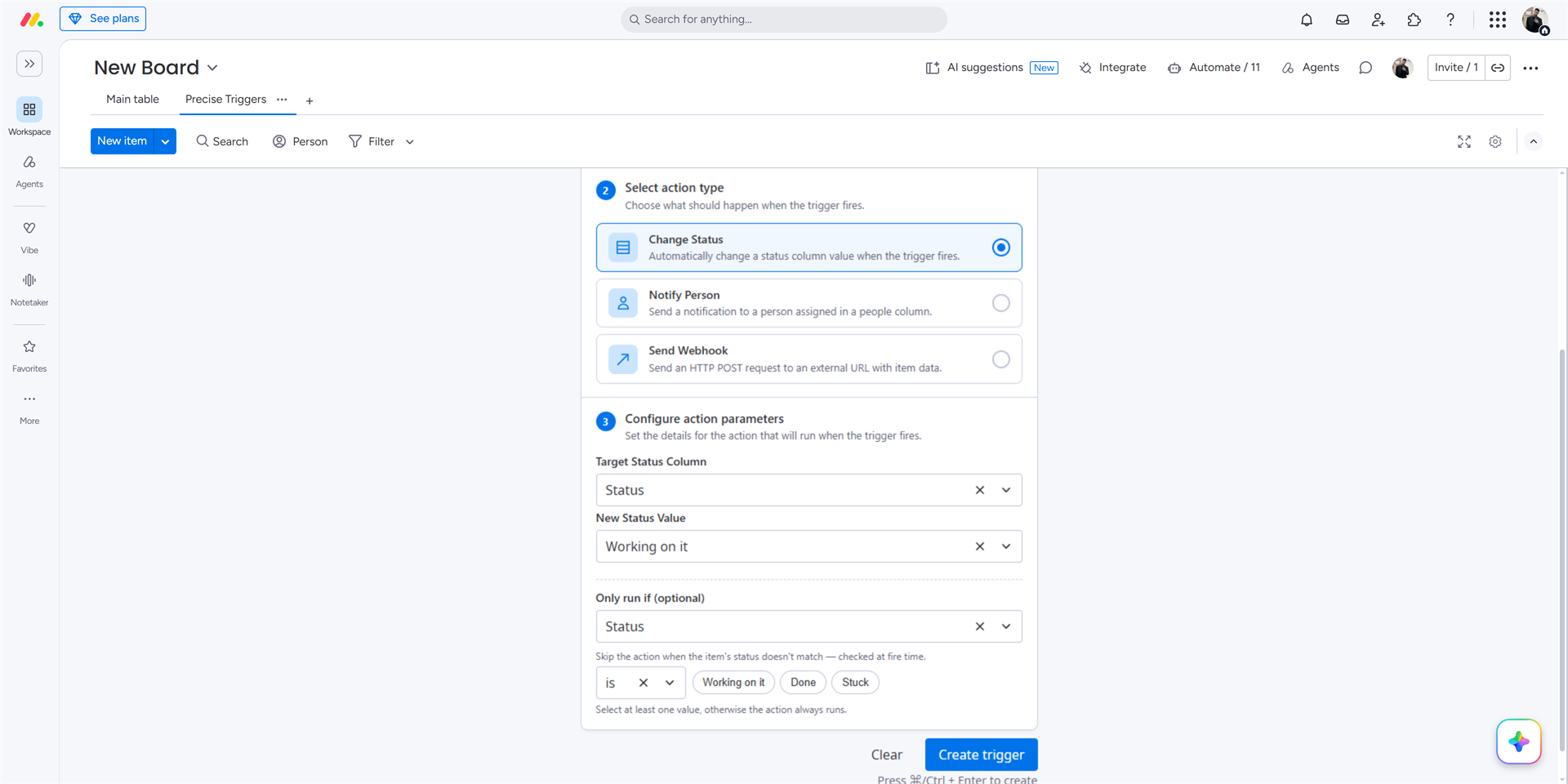
- Choose "Change Status" as the action type.
- Pick the target status column and the new value (e.g., "Overdue", "Done", "Stuck").
- Optionally add a condition — "Only run if status is Working on it" prevents the trigger from overwriting a status that was already changed manually.
- Click Create Trigger.
That's it. Precise Triggers will scan all existing items on the board, schedule a job for each future date, and register a webhook so new items (or date changes) are picked up automatically.
What happens at fire time
When the DateTime arrives:
- The trigger checks the optional condition (if you set one).
- If the condition passes (or there's no condition), it calls the monday.com API to change the status column to your specified value.
- The execution is logged — you can see success/failure in the Monitor tab.
If the API call fails (network issue, rate limit), the system retries up to 3 times with exponential backoff. If all retries fail, the job moves to a dead-letter queue for investigation.
When to use this vs native automations
Use native monday.com workflows when:
- You only need "on the day" precision (time doesn't matter).
- You're triggering from status changes or form submissions (not dates).
Use Precise Triggers when:
- You need the action at the exact hour/minute.
- You want a condition check at fire time ("only if status is still X").
- You need to fire webhooks or notifications based on a DateTime column.
- You want an execution log showing when each trigger fired and whether it succeeded.
Pricing
Precise Triggers is free to try for 14 days with 25 automations/month. Paid plans start at $19/month for 500 automations. Use code EARLY50 at checkout for 50% off your first year.
Ready to automate on your schedule?
Install in 10 seconds. First 25 automations are free every month.
Add to monday — Free